How to Create an Email Automation With AI: Step-by-Step
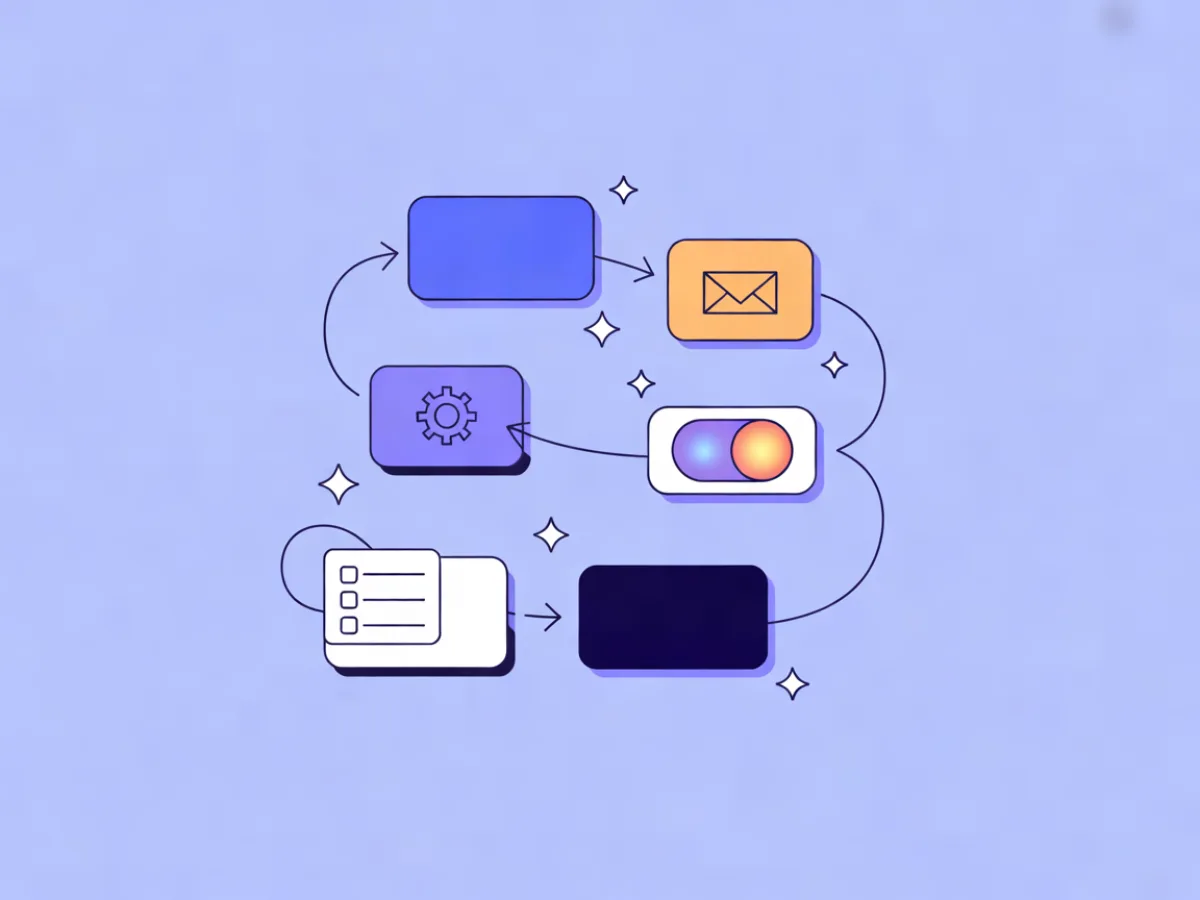
You create an email automation with AI by describing the workflow you want in plain language, then reviewing the draft it produces before you activate it. In Mailerflow, the AI automation builder turns a sentence like "welcome new signups, nudge them to create a first project, and follow up if they go quiet" into a full workflow — trigger, waits, conditions and emails — that you edit and test. The AI email builder does the same for the copy and design of each message. This guide walks through the exact steps, with a worked example you can adapt.
What you'll set up and what you need before you start
The shift from traditional automation building is mostly about where you spend your time. Instead of dragging a trigger onto a canvas, wiring waits, and writing every email from a blank block, you write a description and review a draft. The work moves from construction to editing — which is faster, but only if you review carefully.
Before you open the builder, have these in place:
- A verified sending domain. DKIM, SPF and DMARC records published and passing. Mailerflow guides the setup and verifies it automatically, but propagation can take a few hours, so do this first.
- An audience or segment to enroll. A signup source (form, import, API) and, ideally, a dynamic segment so the automation only enrolls the right people.
- A single clear goal. "Get trial users to create their first project" is a goal. "Engage users" is not — it produces a vague draft.
- Awareness of your plan limits. On the Free plan you get 2,500 contacts, 10,000 emails a month, 3 active automations and 100 AI actions a month. Paid plans raise these; unlimited emails start on every paid tier.
If you want the conceptual background first, the pillar guide on building workflows by describing them covers how the drafting model thinks about triggers and branches.
Step-by-step: create email automation with AI
1. Pick the trigger and name the automation
Choose the event that starts the workflow. Mailerflow supports triggers on signups, events, dates, inactivity and website behavior.
- Signup — someone joins a list or creates an account.
- Event — a tracked action fires, such as
project_created. - Date — a field like
trial_end_datearrives, or a fixed calendar date. - Inactivity — no login or no click for N days.
- Website behavior — a page visit or a JS SDK event, such as viewing the pricing page twice.
Name it something you'll recognize in six months: Trial onboarding — no project created. Names like Automation 1 become a liability once you have ten of them.
Verify: the trigger panel shows the exact event or field it's listening for, and a test event appears in the trigger log.
2. Write the automation description
This is the step that determines the quality of everything downstream. Use a formula:
Goal + trigger + timing + conditions + what each email should do
Weak description:
"Send onboarding emails to new users."
This produces a generic three-email drip with no conditions and copy you'll rewrite entirely.
Strong description:
"When someone signs up for a free trial, send a welcome email immediately with one action: create your first project. Wait 2 days. If they haven't created a project, send a tip email about the fastest way to set one up. If they have, send a short email about inviting teammates. Wait 3 more days, then send a check-in asking what's blocking them. Wait 5 days, and if they still haven't created a project, send a nudge offering a 15-minute setup call."
Notice the strong version names the trigger, the waits in days, the conditions and the job of each email. That's the whole difference. If you're following an AI workflow builder tutorial, this is the step worth slowing down for.
Verify: before generating, read your description back and check it contains at least one condition and one explicit wait.
3. Generate the draft and read the workflow map
The builder returns a visual map: trigger at the top, then waits, conditions, branches and email nodes. Read it in this order:
- Trigger — correct event and correct audience filter?
- Waits — measured in the unit you meant (hours vs days is the classic mistake).
- Conditions — do the branches test the fields you actually track?
- Branches — does each path make sense, including the one nobody takes?
- AI steps — any personalization nodes, and what data they read.
Verify: trace one hypothetical contact from trigger to exit out loud. If you can't, the map has a gap.
4. Review and edit each drafted email
The AI email builder produces a complete responsive design, subject lines and preview text for each node. Treat it as a first draft from a competent copywriter who doesn't know your product.
- Subject line — cut it to under ~50 characters where you can; keep the specific noun.
- Preview text — make it extend the subject, not repeat it.
- Body — one idea per email. Delete the second CTA.
- CTA — link text should name the action ("Create your first project"), not "Click here".
- Design — the visual block editor handles headings, heroes, products, columns and social links; reusable templates keep branding consistent.
Verify: send each email to yourself and read it on a phone.
5. Set the settings AI won't guess
- Sending domain — the verified one, not a shared default.
- Send-time behavior — choose "send when the contact is most active" if timing matters less than opens.
- Consent and suppression — confirm the enrollment source has consent records, and that bounces and complaints suppress automatically.
- Exit conditions — the rule that removes someone the moment they convert.
Verify: the automation summary lists your sending domain, suppression rules and exit condition.
6. Test with a seed contact
Add yourself and a seed address to the trigger audience, fire a test event, and walk the workflow. Check the delivery log, and if you use webhooks, confirm signed events arrive and retries are logged.
Verify: every email arrives, links resolve, personalization fields render with fallbacks.
7. Activate and monitor
Turn it on. For the first day, watch contacts move through the map. Then check delivery, bounce and complaint analytics weekly.
Verify: the first real contact completes the workflow and exits for the reason you expect.
A worked example: 14-day onboarding for a project management tool
Illustrative example — not a real customer.
The description typed into the builder:
"When someone signs up for a free trial, send a welcome email with one action: create your first project. Wait 2 days. If they created a project, send a tip about inviting teammates. If not, send a tip about the fastest project setup. Wait 3 days, then send a check-in asking what's blocking them. Wait 5 days, and if they still haven't created a project, send a nudge offering a setup call."
The draft map:
| Step | Type | Timing | Condition | Goal |
|---|---|---|---|---|
| 1 | Immediate | — | Create first project | |
| 2 | Wait | 2 days | — | — |
| 3 | Condition | — | project_created = true |
Branch |
| 4a | — | Yes | Invite teammates | |
| 4b | — | No | Fastest setup | |
| 5 | Wait | 3 days | — | — |
| 6 | — | — | Ask what's blocking | |
| 7 | Wait | 5 days | — | — |
| 8 | Condition | — | project_created = false |
Branch |
| 9 | — | No | Offer setup call |
What the marketer changes in review:
- Tightens the day-0 subject from "Welcome to [Product]!" to "Your first project takes 4 minutes".
- Adds a website-behavior condition on step 4b: only send the setup tip if they've visited the docs in the last 48 hours; otherwise skip to step 5.
- Adds an exit condition: anyone whose plan upgrades leaves the workflow immediately.
- Shortens the day-9 check-in to three sentences.
For a store version of the same pattern, the ecommerce flows guide covers which automations AI drafts well and what store data they need.
How to check it works before and after you activate
Before activation:
- Test emails render on mobile and desktop.
- Every link resolves to the right page.
- Personalization fields resolve; fallbacks show something sensible when a field is empty.
- A test event fires the trigger.
- Waits are in the unit you expect — check the node, not your memory.
- Branches route correctly for both true and false.
After activation:
- Follow the first few contacts through the map.
- Watch delivery, bounce and complaint analytics.
- Check webhook delivery logs for retries and failures.
- Confirm a converted contact exits rather than continuing.
"Working" means each checkpoint behaves as configured — not that any particular number goes up.
Common mistakes and how to fix them
Vague descriptions. Symptom: generic copy you rewrite from scratch. Fix: use the goal + trigger + timing + conditions formula.
Accepting the first draft. Symptom: emails that sound like a template. Fix: budget 15 minutes per email for editing.
No exit condition. Symptom: customers who bought keep getting "ready to buy?" emails. Fix: add an exit rule on the conversion event.
Trigger too broad. Symptom: existing customers get onboarding. Fix: enroll a dynamic segment, not the whole list.
Waits too short. Symptom: three emails in two days. Fix: match cadence to the decision cycle.
Consent gaps. Symptom: no proof of opt-in for a signup form. Fix: use embeddable forms with double opt-in and consent records.
Missing personalization fallbacks. Symptom: "Hi ," in the inbox. Fix: set a default for every merge field.
Activating before domain verification. Symptom: poor inbox placement. Fix: wait for DKIM, SPF and DMARC to pass.
Next steps: improving the automation after it's live
Once the workflow runs cleanly, layer improvements: A/B test subject lines, add an AI personalization step that reads website-behavior data, split branches by engagement, and add a re-engagement branch triggered by inactivity. Dynamic segments keep enrollment clean as your list grows. Mailerflow's visual automations support waits, conditions, webhooks and AI steps, so most of these are edits to the existing map rather than new builds. If you're weighing whether to start from a draft or a template, this comparison of AI builders vs templates is a useful read.
FAQ
Do I need to know how to code? No. You describe the workflow in a sentence and review the draft. Webhooks and the REST API are there if you want them, but they're optional.
Can I edit what the AI drafts? Yes — every node and every email is editable in the visual editor before activation.
What's the difference between a trigger and a condition? A trigger starts the workflow. A condition decides which path a contact takes once they're inside it.
How many automations can I run? The Free plan allows 3 active automations and 100 AI actions a month. Paid plans raise both, up to unlimited automations on higher tiers.
What happens if a contact matches two automations? Both can enroll them unless you set exit conditions or segment filters to prevent overlap. Decide deliberately which automation owns which audience.
How do I stop emails once someone converts? Add an exit condition on the conversion event. The contact leaves the workflow immediately, even mid-wait.
Describe your next email or automation in one sentence and let Mailerflow's AI build it — free plan, no credit card.