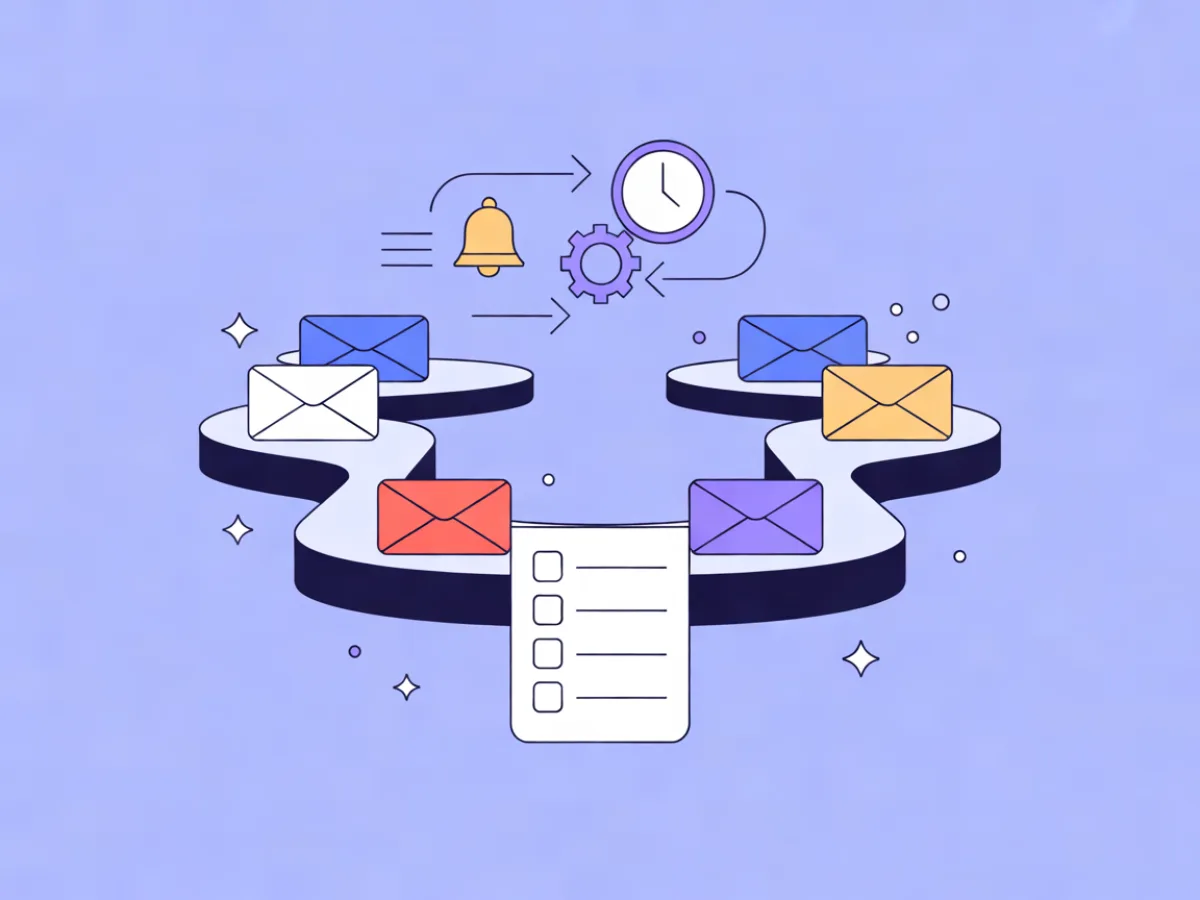
Visual Email Workflow Builder: How to Design Automations Without Code

A visual email workflow builder is a canvas where triggers, waits, conditions, actions and emails are nodes you connect — instead of code, a spreadsheet of rules, or a fixed autoresponder sequence. You drag a trigger onto the canvas, attach a wait, branch on a condition, and drop in emails along each path. The point is not that it looks nice; it is that a marketer can read the whole flow, spot the mistake, and change it without a ticket to engineering.
That distinction matters when you are choosing a platform. Most tools now advertise "automation," but what sits underneath varies a lot: a single-branch drip, a rule engine for segmentation, or a genuine branching canvas. This guide covers what to look for, how a branching workflow actually comes together, and the mistakes that cost the most time.
What a visual email workflow builder actually is
Three things get called "automation" and they are not the same. A single-branch autoresponder sends a fixed sequence: email one, wait two days, email two, done. Useful, but every contact follows the same path. Rule-based segmentation sorts people into groups so you can send them different campaigns — powerful for targeting, but it does not sequence anything by itself. Hard-coded scripts via an API give you unlimited control, and you pay for it in maintenance: every logic change is a deploy, and only engineers can review it.
A visual builder sits between these. It keeps the sequencing of an autoresponder, adds the branching of a rule engine, and makes the logic reviewable by whoever owns the customer relationship. When a colleague asks "what happens if someone unsubscribes mid-flow?", you can point at the canvas instead of reading a script.
The practical payoff is speed and safety. Changes ship in minutes, mistakes are visible before activation, and the person who understands the campaign is the person who can edit it. If you are still deciding whether you need automation at all, email automation vs marketing automation is worth reading first — the two solve different problems.
What a visual builder should let you do
Use these five capabilities as your comparison criteria. They are the questions that separate a canvas you will still be using in two years from one you outgrow in six months.
Triggers that cover more than a signup
A builder limited to "contact joins list" triggers forces workarounds later. Look for signup triggers, custom event triggers (a contact completed onboarding, placed an order), date triggers (a renewal anniversary), inactivity triggers (no open or click in 45 days), and website-behavior triggers. Example: a renewal reminder should fire from a date trigger 30 days before the contract ends, while a win-back should fire from inactivity — same email style, completely different trigger.
Branching logic: conditions, splits and waits
Conditions should support AND/OR across fields, tags, engagement and events. You want if/else branches, percentage splits for testing variants, and wait steps measured in minutes, days, or until a specific weekday and time. Example: after a demo request, branch on whether the contact opened the pricing email within three days. One caution — deeply nested branches become hard to audit. If a path is more than four levels deep, consider splitting it into two automations.
Actions beyond sending email
A flow that only sends email is a drip. Look for webhooks that notify your CRM or internal tools, tagging and field updates, adding contacts to a segment, and triggering transactional messages. Webhooks should be signed and have retry behaviour plus delivery logs, so a failed call is debuggable rather than invisible. Mailerflow's visual automations include waits, conditions, webhooks and AI steps, with signed real-time webhooks that retry and log deliveries.
Personalization and AI steps inside the flow
Personalization should go beyond first name: tailor copy to what a contact actually read or did. AI steps can draft or adapt copy at a specific point in the flow. Mailerflow offers AI personalization steps and website-behavior data via its JS SDK, and its AI automation builder drafts a workflow from a one-sentence description — trigger, waits, conditions, emails — for review before activation. Treat AI output as a first draft: it is fast at structure and copy, but you still own the logic and the claims.
Testing, versioning and observability
Ask four questions: can you preview the path a specific contact would take, test-send each email, see per-step entry and exit counts, and pause one branch without killing the whole automation? Note that A/B testing of campaigns is a separate feature from testing an automation branch — don't assume one implies the other. Without per-step analytics you cannot tell where people drop out, which is the single most useful number in the whole flow.
How a branching workflow comes together, step by step
Scenario: a B2B SaaS free-trial signup flow. These are decisions, not clicks.
- Pick the entry trigger and re-entry rules. Trial signup, and decide whether a contact who signs up twice enters twice. Usually the answer is no.
- Define the goal and the exit condition. Goal: completed setup. Exit: contact converts or unsubscribes. Write this down before building anything.
- Map the happy path as a straight line first. Trigger, wait, email, wait, email. Get that working end to end.
- Add the first branch. Has the contact completed the setup event within three days? Yes and no paths.
- Add waits with sensible time zones. A wait of "two days" that lands at 3am local time is a wasted send.
- Add a re-engagement branch. If no activity after seven days, switch to a shorter, more direct message.
- Add the webhook that tells the CRM a trial is at risk. This is where automation stops being email-only.
- Test with an internal contact. Walk the no-path deliberately, not just the happy path.
- Activate and watch per-step counts for the first week. If a step shows high entry and low exit, the email or the wait is wrong.
A worked example: trial signup to activation
Here is the same flow as a readable outline.
Trigger: trial signup
  Wait 1 hour
  Email 1: getting started
  Wait 2 days
  Condition: completed setup event?
    Yes -> Email 2a: advanced tips
           Wait 3 days
           Condition: opened Email 2a?
             No -> resend with a new subject line
    No  -> Email 2b: offer a guided walkthrough
           Wait 2 days
           Condition: still inactive?
             Yes -> webhook to CRM + tag "at-risk"
Exit: contact converts or unsubscribes
The pattern transfers. For ecommerce, a cart abandonment flow branches on browse behaviour: someone who viewed three similar products gets a comparison-style email, while someone who viewed one gets a simple reminder. The logic is the same shape — trigger, wait, condition, branch, action.
Where would AI drafting save time here? The first draft of the structure and the copy for emails 1, 2a and 2b. Where should you write it yourself? The exit condition, the timing of the waits, and the definition of "at-risk" — those are business decisions, not copy decisions.
Common mistakes when building without code
- Building the whole tree before testing the first branch. Fix: get trigger-to-first-email working, then branch.
- No exit condition, so contacts loop. Fix: every automation needs a conversion or unsubscribe exit.
- Waits that ignore time zones. Fix: check whether your platform schedules by contact-local time.
- Using opens as a hard condition. Opens are approximate, so treat them as a signal, not a gate.
- Duplicating the same email across branches. Fix: reuse a template and vary the subject line.
- No suppression check before a re-engagement branch. Fix: exclude recent purchasers and active customers.
- Automations with no owner. Fix: name an owner and a review date for every live flow.
- Testing only with your own address. Fix: test with a contact that matches each branch condition.
Checklist before you commit to a platform
- Trigger types: signup, event, date, inactivity, website behaviour
- Branching depth and AND/OR conditions on fields, tags, engagement, events
- Wait granularity: minutes, days, specific weekday and time
- Webhook reliability: signing, retries, delivery logs
- Per-step analytics: entry and exit counts per node
- Test and preview mode for a specific contact
- Template reuse across branches
- AI drafting with human review before activation
- Deliverability setup: guided DKIM, SPF and DMARC, bounce and complaint suppression
- GDPR: data export, erasure, consent logs, retention, hosting region
- Migration support for contacts, suppression lists and existing flows
- Pricing model clarity
On that last point, models differ — some charge per contact, some per email sent, some gate features by tier. Check each vendor's official pricing page rather than relying on secondhand comparisons. As one example of a per-contact model: Mailerflow's paid plans include unlimited emails, with a Free plan of 2,500 contacts and 10,000 emails a month, and paid plans from $14.90/month. Compare the models against your own send volume and list growth, not against each other in the abstract.
FAQ
Do I need a visual builder if I can use an API?
If your team has engineers who enjoy owning marketing logic, an API is more flexible. Most teams find the visual layer wins on review speed and on who can make changes. A good platform gives you both, so you can use the canvas for campaigns and the API for transactional sends.
How many branches is too many?
When you can no longer explain the flow in one sentence per path, it is too many. A practical ceiling is three or four levels deep and five or six branches; beyond that, split into separate automations with clear triggers.
Can I edit a live automation without breaking contacts mid-flow?
It depends on the platform — check the docs. Some apply changes only to new entrants, others move everyone. The safe habit is to duplicate the automation, edit the copy, and switch the trigger when you are ready.
How do I test an automation before it goes live?
Use preview mode if it exists, send each email to an internal address, and create test contacts that satisfy each branch condition. Then watch per-step counts for the first week after activation.
What happens to contacts already in a flow when I change a wait step?
Usually they keep the wait they entered with, and only new contacts get the new timing. Confirm this with your vendor, because the behaviour differs and it affects whether a change is safe to make mid-campaign.
Where to go next
Pick one workflow you currently run by hand — a trial follow-up, a win-back, a post-purchase sequence — and rebuild it visually as your first exercise. If you are still comparing platforms, the buyer's guide to email automation software walks through the evaluation criteria in more depth.
Describe this automation in a sentence and Mailerflow drafts the workflow for you to review — start free.