How to Generate Emails From Your Website Content (Step-by-Step)
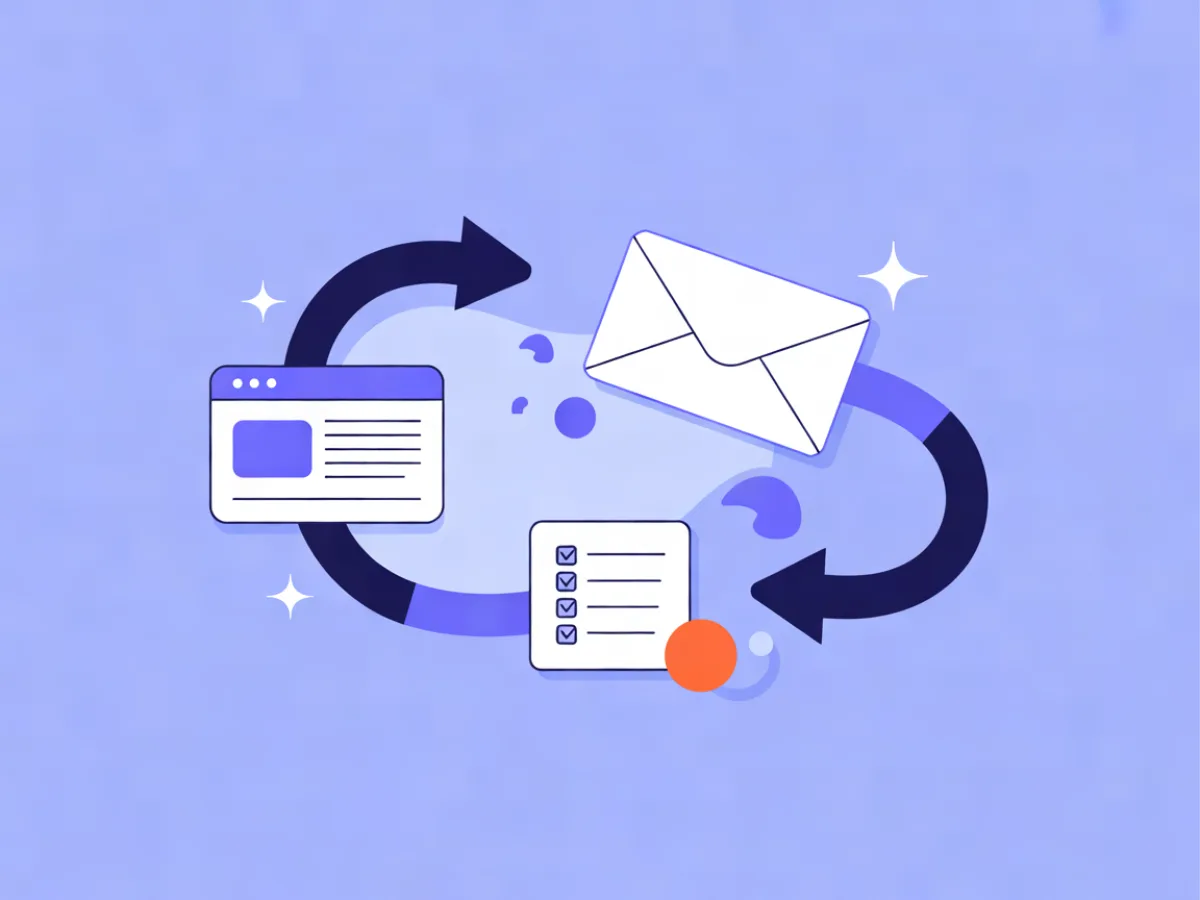
You can generate emails from website content by pasting the source text into an AI email builder, writing a short brief that names the audience and the action, then editing the subject line, links and one piece of context before you send. The page supplies the substance; the brief supplies the angle. Below is the full workflow, with the exact inputs at each step and a worked example you can copy.
What you'll set up and what you need
Three source types behave differently, so treat them as three different jobs.
- A product page gives you features, specs and pricing. The email usually needs one benefit, one proof point and a link — not the whole spec sheet.
- An article or blog post gives you an argument. The email needs the conclusion first, then a reason to read the rest on site.
- An announcement (a launch, a policy change, a date) gives you news. The email needs the date and the consequence for the reader, stated early.
Before you start, have four things ready: the URL or pasted copy, the goal of the email (a click, a reply, an upgrade), the segment you're sending to, and a sending domain that already passes DKIM, SPF and DMARC. An unauthenticated domain will undo good copy.
AI drafting works best when you give it the source text plus one sentence about the reader. That sentence is what stops the output from reading like a rewritten page. If you want the background on how these tools behave with different inputs, the guide to creating marketing emails with AI covers the mechanics.
In Mailerflow, the AI email builder takes a description of the email and returns a complete responsive design, subject lines and preview text. That's the drafting step in this workflow.
If you are still deciding where to send from, see the Best Email Marketing Platforms compared side by side, with prices checked daily on each provider's own pricing page.
Step-by-step: from page to sendable email
1. Choose and clean the source
Copy the page into a plain-text editor and strip the furniture: navigation, cookie notices, related-post blocks, footer links, image captions that repeat the heading. Keep headings, specifications, quoted lines and any numbers. A 1,500-word page usually compresses to 300–500 words of usable source. If the page is behind a login or renders mostly in JavaScript, copy the visible text manually rather than relying on a fetch.
2. Write the brief
Three sentences, in this order: who the reader is, what you want them to do, and the tone. For example: "Write to contacts who signed up in the last 60 days and have not purchased. Goal: book a demo. Tone: plain and specific, no hype." Keep the tone instruction short — "plain", "warm", "direct" — because long tone descriptions tend to produce pastiche.
3. Paste the source and describe the email
In the AI email builder, paste the cleaned source and add your brief. Describe the email you want in one or two sentences, including the structure you expect: a short intro, two or three benefit blocks, one call to action. The builder returns a full responsive design plus subject line options and preview text. If the first draft is close but flat, adjust the brief rather than rewriting by hand — see editing and improving existing emails with AI for that loop.
4. Fix the subject line and preview text first
These two lines set expectations for everything else, so edit them before you touch the body. Pick the subject line that states the concrete thing, not the clever one. Then check that the preview text extends the subject line instead of repeating it — a preview that echoes the subject wastes the second-most-visible line in the inbox.
5. Replace placeholder links and add UTMs
AI drafts usually insert a generic link. Swap it for the real destination and append UTM parameters (utm_source=email, utm_medium=campaign, utm_campaign=annual-billing) so you can compare this send against others later. Check that every button points somewhere real; a broken hero link is the most common defect in AI-drafted emails.
6. Add one piece of context the page doesn't have
The page can't say why you're writing now. Add it: a date, a limit, a deadline, a change in the reader's account. One sentence is enough, and it's usually the difference between an email that reads as a newsletter and one that reads as a message.
7. Send a test
Send to yourself and one colleague on a different email client. Check the mobile rendering, the plain-text version, and that the unsubscribe link works. This takes two minutes and catches most of what would otherwise reach your list.
8. Schedule or trigger
Either schedule the send or attach it to an automation. If you're triggering it, read the conditions before you activate — a trigger on "opened at least two emails" behaves differently from one on "clicked at least once".
A worked example: a pricing page becomes a plan-change email
This is an illustrative example, not a customer story.
Source: a pricing page that now lists an annual billing option alongside monthly.
Brief as written: "Write to contacts on the monthly plan who opened at least two emails in the last 30 days. Goal: switch to annual. Tone: plain, no hype."
Structure the builder returned:
- Three subject line options, including "Your monthly plan now has an annual option"
- Preview text: "Same features, one invoice a year."
- Hero block with a short intro
- Three benefit blocks pulled from the page: one invoice, price locked for twelve months, same plan features
- A comparison line: monthly total versus annual total
- One call to action button: "Switch to annual"
Edits a human makes:
- Cut a claim the page makes about "flexibility" that the email can't support in one line — it reads as filler out of context.
- Replace the vague comparison with the exact figure: the annual price divided by twelve, next to the monthly price.
- Tighten the CTA from "Learn more about annual billing" to "Switch to annual".
- Add the context sentence: the annual option was added this month, and the current monthly price is held for existing contacts who switch before the next billing date.
The same source, different segment: for contacts who have never opened an email, the same page becomes a one-paragraph email with a single link and no comparison table. Same source, different brief, different email. That's the point of writing the brief before the draft.
How to check it works
Verification has two halves: before send and after.
Before send:
- Render the email in at least two clients (one webmail, one mobile app).
- Click every link and confirm it resolves and carries the UTM parameters.
- Confirm the preview text doesn't repeat the subject line.
- Read the plain-text version end to end; if it's unreadable, the HTML is probably over-structured.
- Confirm the send list matches the segment you intended — check the count, not just the name.
After send:
- Compare clicks per link. The link back to the source page is the one that tells you whether the email added context or just duplicated the page.
- Compare this campaign's click-through rate against your usual campaign link. If the source-page link underperforms your normal CTA, the email probably gave away too much and left no reason to click.
- Check bounces and complaints. A spike in either usually means the segment was wrong, not the copy.
Mailerflow's analytics cover delivery, bounces, complaints, clicks and approximate opens, per campaign and overall, which is enough to run this comparison without exporting anything.
Common mistakes and fixes
Copying the whole page. The email becomes a wall of text and nobody reaches the CTA. Fix: cap the source at 300–500 words and let the email carry one idea.
Letting the AI invent a claim. Drafts sometimes generalize beyond the source. Fix: read every factual sentence against the page and delete anything you can't point to.
Sending the same email to every segment. A first-time reader and a two-year customer need different framing. Fix: write the audience sentence before the draft, not after.
Forgetting the reason for sending now. Without a date or a change, the email reads as filler. Fix: add one context sentence in step 6.
Burying the link. One primary CTA, placed above the fold and repeated once at the end. Fix: remove secondary links that compete with it.
Using the page headline as the subject line. Headlines are written for search and scanning; subject lines are written for an inbox. Fix: write the subject line from the brief, then check it against the page.
Skipping the plain-text check. Some readers and some filters see only the text part. Fix: read it before you send.
Not tagging the campaign. Without UTMs you can't compare this send to the last one. Fix: add them in step 5, every time.
Turning one source into a sequence
One article can seed a three-email sequence: an announcement that links to it, a deeper-detail email a few days later for people who didn't click, and a short follow-up for non-openers. The source stays the same; the brief changes per email.
This is where an automation builder saves time. Mailerflow's AI automation builder drafts a workflow from a sentence — trigger, waits, conditions and emails — for review before activation. Triggers include signups, events, dates, inactivity and website behavior, so you can branch on whether someone actually read the article. The review step matters: read the drafted conditions before you switch it on, because a condition written as "did not open" behaves differently from "did not click".
FAQ
How much source text should I give the AI?
Enough to cover the substance, no more. For most pages, 300–500 words of cleaned text is the sweet spot. More than that and the draft starts summarizing instead of focusing.
Can I use a competitor's page as a source?
You can use it for research, but don't paste it into a drafting tool and send the output. Paraphrasing someone else's page closely is a legal and reputational risk, and it produces an email with no point of view.
Will the email sound like the page?
It will if you only paste the page. The brief is what changes the voice — a one-sentence audience description and a tone word shift the draft more than any amount of post-editing.
Do I need the page to be live?
No, but the link in the email does need to resolve. If the page isn't published yet, draft the email now and hold the send until the URL is live.
How do I keep the email from duplicating the page?
Give the email a job the page can't do: a date, a segment-specific angle, or a single decision the reader has to make. If the email and the page say exactly the same thing, the email has no reason to exist.
Next steps
Pick one page this week — a pricing page, a recent article, an announcement — and run the eight steps end to end. It takes under an hour the first time.
Then write a reusable brief template with three slots: audience, action, tone. You'll fill it in faster than you'd write a fresh prompt, and the drafts will be more consistent.
Finally, build the segment before the next send, so the email goes to people for whom the source page is actually relevant.
If you want to try the drafting step, describe your next email or automation in one sentence and let Mailerflow's AI build it — free plan, no credit card.