
Email Design Best Practices: Layouts That Work Everywhere
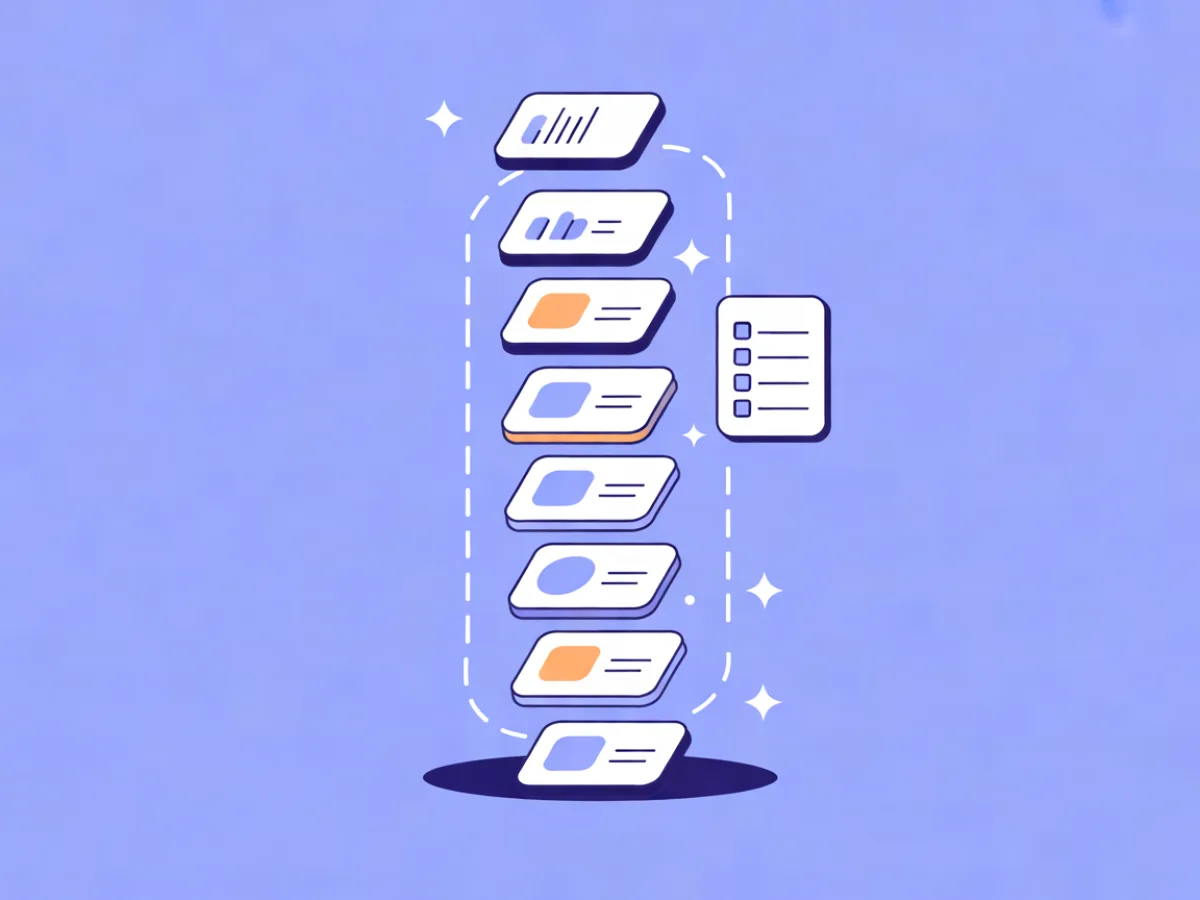
Email design best practices are the rules that keep an email readable and clickable across every inbox, client and device — not the rules that make it look good in a design tool. You are designing for a rendering environment you do not control: dozens of email clients, dark mode, blocked images, small screens, screen readers and text-only previews. Treat layout as a rendering problem first and a taste problem second, and most of the hard decisions become obvious.
What email design best practices actually mean
Web design gives you CSS grid, hover states, web fonts that load reliably and a browser that behaves predictably. Email gives you none of that by default. Your HTML is parsed by clients with wildly different capabilities, images are often blocked until the recipient opts in, and dark mode may invert your colors whether you planned for it or not.
That changes what "good" means. A beautiful email that collapses on a phone, disappears when images are blocked, or turns unreadable in dark mode is a failed email. Good email design survives all of those conditions and still communicates one clear message.
Four levers do most of the work: hierarchy (what the eye sees first), layout (how blocks stack and reflow), typography (how text is set), and color and white space (how the first three are supported). This guide walks through each in order.
Why it matters more than most marketers think
Rendering variance is the core issue. The same HTML can look different in Gmail, Outlook, Apple Mail and a mobile client — and you cannot test every combination. The practical answer is to design conservatively so the email degrades gracefully rather than breaking.
Image blocking is the most underrated constraint. Many recipients see your email with images off by default. When that happens, your alt text becomes the design. If your hero image has no alt text, the recipient sees an empty box where your message should be.
Dark mode is the second. A white background with dark text can invert to dark background with light text, or it can stay as-is depending on the client. Either way, low-contrast palettes and pure black-on-pure-white assumptions cause problems.
Accessibility is the third. Contrast, tap target size and readable font sizes are not optional polish — they determine whether a meaningful share of your list can use the email at all.
There is also a deliverability angle, but keep it in proportion: design does not determine inbox placement on its own. What matters is avoiding spam-triggering patterns — image-only emails with almost no live text, misleading link text, or a layout that looks like a phishing page. Those are design choices, and they are worth avoiding.
The four decisions behind every email layout
Before you open any editor, make four decisions in order:
- What is the one action? Every email has one primary goal. Name it in a sentence.
- How does the eye travel? Rank the content: hero, supporting proof, secondary links, footer.
- How is the text set? Font size, line height, line length, alignment.
- How do space and color support the first three? Padding, section breaks, one accent color.
If you skip step one, steps two through four have nothing to organize around, and you end up with the classic problem: five links of equal visual weight and no clear next step.
Step 1: Set hierarchy before you open the editor
Hierarchy means one primary message, one primary call to action, and everything else visibly subordinate. Write the email as a plain list of lines first — literally, in a text file:
Subject: Your order ships today
Preheader: Tracking inside

[Logo]
Headline: Your order is on its way
Body: Arriving Thursday. Track it any time.
[Button: Track your order]
Secondary link: View order details
Footer: address, unsubscribe
That list is your design. If the hierarchy does not work as plain text, no amount of layout will fix it. A useful test: cover everything except the headline and the button. Can a reader still tell what the email is about and what to do? If not, the hierarchy is wrong.
A worked example: a product launch email where the hero headline, one image, one short paragraph and one button carry the message, with a secondary "read the full story" link below. The secondary link is deliberately smaller and lower-contrast so it does not compete.
Step 2: Choose a layout that survives every client
Single-column is the default for a reason: it reflows predictably on mobile, works when images are blocked, and is easy to keep accessible. Two columns are acceptable when the items are short and paired — two product cards, two statistics, an image beside a caption. Make them stack vertically on narrow screens rather than shrink side by side.
The standard skeleton almost every email uses:
- Preheader text (the line that appears next to the subject in the inbox)
- Header with logo
- Hero block
- Body blocks, one idea each
- Primary CTA
- Footer with physical address and unsubscribe
Under the hood, most reliable email HTML is table-based, because table layout is the one thing email clients agree on. You should not hand-code that if you can avoid it. A visual block editor with headings, heroes, products, columns and social links handles the table scaffolding for you, and reusable templates let you save a skeleton once and reuse it instead of rebuilding it every send. That is the approach Mailerflow's editor takes, and it is the main reason non-designers can produce consistent emails.
Step 3: Typography that stays readable
Concrete starting points that hold up across clients:
- Body text: 16px minimum. 14px is an absolute floor, and only for legal or footer text.
- Line height: roughly 1.4 to 1.6 times the font size.
- Line length: 50 to 75 characters. Wider than that and the eye loses its place.
- Alignment: left-aligned for anything longer than two lines. Centered paragraphs are hard to read at length.
- Typefaces: one or two. More than that reads as noise.
- Headlines: roughly 1.5 to 2 times body size.
Custom fonts need fallbacks, because many clients will not load them. Always specify a web-safe stack so the email still looks intentional when the custom font fails:
font-family: 'YourBrandFont', Helvetica, Arial, sans-serif;
Avoid all-caps for anything longer than a short label — it slows reading and hurts legibility at small sizes. And build buttons as live text with padding, not as images: text buttons stay readable when images are blocked, scale with the recipient's font settings, and remain tappable.
Step 4: Color and white space as support, not decoration
Color should do one job: point at the action. Pick a single accent color for your primary CTA and use it nowhere else. For body text, aim for WCAG AA contrast — 4.5:1 against the background. Never rely on color alone to convey meaning; if a status is red, also label it.
Dark mode changes the calculus. Avoid assuming a white background and dark text will stay that way. Test with a dark-mode preview and avoid palettes where a mid-tone accent disappears against either a light or dark background.
White space is what makes hierarchy visible. Practical numbers: roughly 20 to 30px of padding around blocks, consistent space between sections, and one idea per block. Compare these two:
Before: three paragraphs of body copy crammed together, a red button, a blue link and a green badge — all competing.
After: one paragraph, generous padding, a single accent-colored button, and the secondary link in plain text below it.
The second version is not more decorative. It is easier to read, and it points at one action.
Worked examples you can copy
These are illustrative layouts, not real campaigns.
Welcome email. Logo, one-line welcome, a single CTA, a short "what to expect" list of three items, footer. Hierarchy decision: the CTA is the only colored element. Mobile behavior: everything stacks in one column, list items stay short enough to read without scrolling sideways.
Product launch. Hero image with descriptive alt text, headline, two-sentence body, primary CTA, secondary "read the full story" link, social row. Hierarchy decision: the secondary link is smaller and lower-contrast. Mobile behavior: hero scales to full width, social icons stay at least 44px apart.
Re-engagement. Plain-text-style layout: one question, one button, no images. Hierarchy decision: removing images removes the blocking problem entirely. Mobile behavior: nothing to reflow, which is the point.
Common mistakes and how to fix them
- Image-only emails. Add live text for the core message and alt text for every image, so the email still works when images are blocked.
- Multiple competing CTAs. Pick one primary action; demote everything else to plain text links.
- Tiny tap targets. Keep buttons and links at least 44px tall and wide enough to hit with a thumb.
- Centered long paragraphs. Left-align anything longer than two lines.
- Missing preheader. Write one deliberately — it appears next to your subject line in most inboxes.
- No plain-text version. Review it; some recipients and filters see it first.
- Ignoring dark mode. Check a dark-mode preview before sending.
- Color as the only signal. Add a label or icon alongside it.
- Missing footer address and unsubscribe. Required in most jurisdictions and expected by recipients.
- Designing only at desktop width. Check the mobile rendering every time.
Pre-send checklist
- One primary CTA, clearly dominant
- Single-column layout, max width around 600px
- Body text 16px or larger
- Alt text on every image
- Contrast checked against WCAG AA
- Tap targets 44px or larger
- Preheader written
- Plain-text version reviewed
- Dark mode checked
- Footer with physical address and unsubscribe
- Test send to your own phone and desktop
- Every link tested
If you are starting from nothing, generating a first draft is a reasonable shortcut — Mailerflow's AI email builder produces a complete responsive design, subject lines and preview text from a short description, which gives you something concrete to edit against this checklist rather than a blank canvas.
FAQ
What width should an email be? Around 600px is the widely used maximum. It fits comfortably in desktop preview panes and scales down cleanly on mobile.
Do I need a designer to make good emails? No. Single-column layouts, a web-safe font stack, one accent color and generous padding cover most of what matters. The checklist above is the whole discipline.
Should I use images or live text? Both, but live text carries the message. Images support it. Never put your only headline or CTA inside an image.
How many fonts should I use? One or two. One for body and one for headlines is plenty, and a single family with weight variation is often better.
What is the minimum font size? 16px for body text. 14px only for legal or footer copy.
How do I handle dark mode? Test a dark-mode preview, avoid pure white backgrounds and pure black text assumptions, and check that your accent color stays visible against both light and dark backgrounds.
Where to go next
The four levers here — hierarchy, layout, typography, color and white space — are the foundation of the rest of this Design Principles cluster. Deeper pieces on typography, color and dark mode, accessibility and mobile layout will build on them. The same principles apply whether you hand-build an email or start from an AI-generated draft.
Generate a complete, on-brand email from a short description with Mailerflow's AI email builder — free plan available.